![Knowledge-base-logo-1.png]](https://support.flatratenow.net/hs-fs/hubfs/Knowledge-base-logo-1.png?height=40&name=Knowledge-base-logo-1.png)
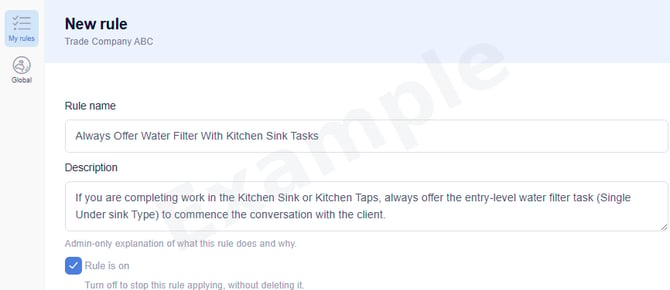
Company-based rules let you add your own smarts to the FRN Quote Review. You set the conditions, and when a quote meets them, ai Allie takes the action you've chosen. This article covers how the rules work, what's available at launch, and how to get started.
List of Content below:
- What's changing to your ai Quote Review feature
- How do the rules work?
- What conditions and actions are available?
- Here are some Rule Examples
- What rules take precedence?
- How do I access the Rule Creation within the ai?
- Getting Started Questions
What's changing to your ai Quote Review feature
The FRN Quote Review feature now includes your company-based rules within ai Allie. While we continue to add new standard rules focused on industry standards to keep your quotes complete and compliant, your own rules will now start adding smarts to the process as well.
How do the rules work?
After setting rules in your AI configuration, every time you review a quote or auto-generate a new quote (coming soon), these rules act as guard-rails for your team.
The rules can't force your tradie to take certain actions...yet... but they will help make sure the right decisions get made. To begin, you set certain conditions, and when those conditions are met, the action is triggered.
What conditions and actions are available?
These are the conditions and actions you can use at launch:
| Condition Requirements |
Match ‘ALL’ Conditions or; Match ‘ANY’ Condition |
| Conditions |
Task Codes:
State:
Price (apply to entire quote or a specific task on the quote):
|
| Actions |
|
We'll be adding new conditions and actions to the AI configuration over time. If there's a condition or action you'd like to see, let us know. (ADD BUTTON HERE TO FORM)
Here are some Rule Examples
-
'Set a minimum quote value' Rule
-
Example: If the quote is under $300, inform the tradie: *"Your quote is under $300. Did you confirm with the office that this is okay?"*
- This rule can be used to set a minimum on specific tasks as well.
-
-
'Always offer this task' Rule
-
Example: If the quote includes toilet install tasks (TTO0520, TTO0530, TTO0540) then add new toilet roll holder to the quote (BAC0010).
-
-
'Never offer a task' Rule
-
Example: If Task ECV0001 is included in the suggestion, remove it from the suggestions and inform the user to remove it from their quote.
-
What rules take precedence?
If we release a standard rule that contradicts one of your own rules, your rule will always take precedence over any rule we create.
This is important, because the AI function is designed to be your assistant — guiding your team through quote creation, based on how *your* business works.
How do I access the Rule Creation within the ai?
You will be able to access the 'Rule Creation' page through your Office View > Settings > Configuration once it is available.
Getting Started Questions:
Turning a rule on or off
Each rule has a "Rule is on" toggle. Turn it off to stop the rule applying without deleting it, then turn it back on whenever you need it.
Global Rules vs My rules
As mentioned above, your rules will take precedence to any 'global' rule we release. These 2 types of rules are in seperate locations. In the ai Configuration, you can access what 'Global Rules' are currently available by clicking 'Global'.
Who can create Rules?
Currently, only 'Manager' type users can access the ai Configuration.
Are rules created only for me or the whole company?
All rules you create will apply to the any user that has a login under your company. You can't specify rules for different people and we won't develop that feature because that would just become frustrating to manage and the idea is to have a clear picture of how you want your staff to sell.
Do rules apply to existing quotes?
Your rules will apply to any quote you click 'Quote Review' as long as they are in a Draft status.
How many rules can I create?
You can create as many rules as you'd like. To ensure rules don't become chaotic, we will deploying the Category function and a 'Rule Check' that will ensure you don't create conflicting rules. more information on this will come shortly.