![Knowledge-base-logo-1.png]](https://support.flatratenow.net/hs-fs/hubfs/Knowledge-base-logo-1.png?height=40&name=Knowledge-base-logo-1.png)
FlatRateNOW now connects with Ascora. You don't enter anything twice, and your techs can use everything in FlatRateNOW that helps tradies offer more options, sell more and keep customers happy.
Ascora stays your job management system. Your customer, job, invoice and payment records all stay in Ascora. FlatRateNOW handles the quoting.
The Workflow
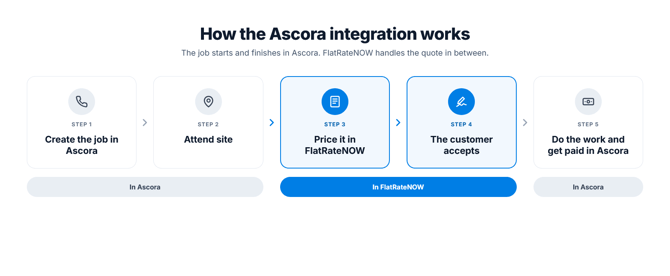
1. Create the job in Ascora
When a customer calls, enter their details in Ascora as usual. Create the Ascora quote and assign it to the tradie who will go out to quote.
2. Attend site
Your tradie uses Ascora to get to the job, meets the customer and works out the problem. When they're ready to price, they can step outside to put the quote together.
3. Price it in FlatRateNOW
The Ascora quote is already in the tradie's FlatRateNOW job list. They build as many options as the job needs from your digital catalogue, which is set up with your pricing. Then they show the options to the customer using the Presentation feature.
4. The customer accepts
The customer picks an option and signs for it in the FlatRateNOW app. FlatRateNOW then uploads the accepted quote into the Ascora quote it's linked to:
-
If the Ascora quote is In Progress, we upload the headings, descriptions, labour times and material values and mark it as Sold.
-
If the Ascora quote is already marked as Sold, we create a new Ascora job and upload into that instead.
-
The signed quote PDF is added to the Ascora quote's attachments for your records.
-
Any options the customer didn't choose are added to the attachments as PDFs too.
-
5. Do the work and get paid in Ascora
When the work is finished, your tradie opens Ascora and everything from the quote is there. Notes, invoicing, payments and closing the job all happen in Ascora, the same as now.
The job starts in Ascora and finishes in Ascora. FlatRateNOW sits in the middle to help you win more quotes, lift your average job value and give customers a better experience.
Connect Ascora to FlatRateNOW
Before you start, copy your API key from your Ascora Administration Settings.
-
Go to FRN Office > Settings > Configuration.
-
Click Features.
-
Set Active Feature Mode to Ascora Integration.
-
Paste in your Ascora API key.
-
Press Connect.
Match your users
Once Ascora is connected, link each Ascora user to their FlatRateNOW user. This is how Ascora quotes end up in the right tradie's job list.-
Go to the Features tab in Configuration.
-
Click Match Users.
-
Find the Ascora user you want to link and press their Link Me button.
-
Pick the matching user from your FlatRateNOW user list.
Can't see them in the list? They may already be linked to another Ascora user. Unlink them from that user first, then try again.
-
Repeat for everyone else you want to link.
-
Press Confirm & Import Ascora Quotes for Paired Users.
-
Click OK.
-
Press Save Changes.
Choose your Ascora settings
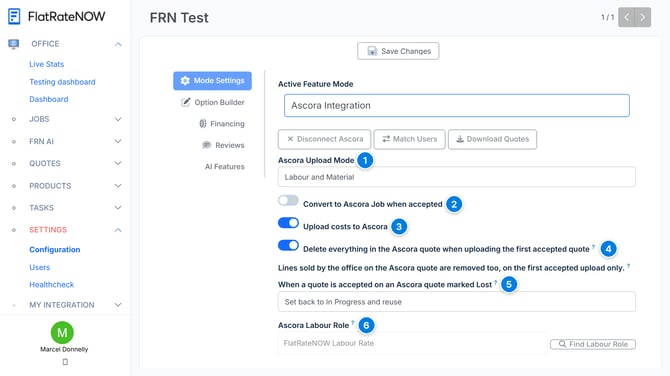
With your users matched, check the integration settings suit the way you work. You'll find them in the Features tab in Configuration. The numbers below match the screenshot.
-
Ascora Upload Mode
-
Labour and Material: for each task, we upload the labour hours sold and the total material value sold.
-
Total Price Only: for each task, we upload the total sold price and nothing else.
-
-
Convert to Ascora Job when accepted
When this is on, accepting a quote in FlatRateNOW turns the Ascora quote into an Ascora job automatically.
-
Upload costs to Ascora
When this is on, we upload the expected cost of each task to Ascora so you can see the expected profit on the job. Treat these as a guide only. Your actual costs may be lower if you buy materials cheaper or spend less time on site.
-
Delete everything in the Ascora quote when uploading the first accepted quote
Use this if Ascora adds something to new quotes automatically, like a call-out fee. When it's on, we clear the Ascora quote before uploading the first accepted quote, so nothing is doubled up. This includes any lines the office has already sold on that quote.
It only happens on the first upload. If you sell another quote on the same Ascora quote later, we add it without deleting anything.
Note: if Convert to Ascora Job when accepted is also on, the Ascora quote is locked once it becomes a job. Any further quotes sold on it will create a new Ascora job.
-
When a quote is accepted on an Ascora quote marked Lost
Choose what happens if a customer accepts after the Ascora quote has been marked Lost:-
Set back to In Progress and reuse: we keep the same Ascora quote number. It goes back to In Progress, then we mark it Sold.
-
Create new Ascora Quote: we create a new Ascora quote number and upload the accepted quote there. The old quote stays as Lost.
-
-
Ascora Labour Role
If you're using Labour and Material mode and want labour uploaded for each task:-
In Ascora, create a new labour role called FlatRateNOW Labour Rate.
-
Back in FlatRateNOW, press Find Labour Role
-